FPV
FPV Simulator: How to Practise on Your PC Before You Fly for Real
Updated on 5 min read
Written with AI: This text was written with the help of artificial intelligence. Technical data and legal information are based on the linked manufacturer and authority sources. Learn more
Why a simulator at all?
In Acro mode you fly FPV drones completely by hand. The drone holds neither altitude nor position and does not level itself out. That feels unfamiliar at first, and every mistake ends on the ground.
In a simulator, that does not matter:
- No repairs: A crash costs one click on “Reset”, not propellers or a frame.
- No rules: No weather, no observer, no flying field. Aviation law does not apply in a simulator.
- Lots of flight time: Real FPV batteries are empty after a few minutes. On your PC you practise as long as you like.
- Targeted practice: You can repeat a manoeuvre a hundred times in a row.
We have not tested the simulators ourselves. The information below comes from the providers’ official pages.
What you need
| Gear | What to look for |
|---|---|
| PC or laptop | Check the system requirements on the simulator’s page |
| Radio | should work as a joystick or game controller via USB |
| USB cable | must transfer data, not just charge |
| Simulator | Liftoff, VelociDrone or another FPV program |
The radio: ideally the real one straight away
Many FPV radios have a USB joystick mode. On a PC they then appear as a game controller, and the simulator reads the sticks directly. Whether your radio can do this is in the manufacturer’s manual. We explain the types of FPV controllers under FPV controller.
An example: according to the manufacturer, the entry-level BetaFPV LiteRadio 2 SE radio works as a USB joystick on a PC and supports simulators such as VelociDrone and Liftoff. It is available in Mode 1 and Mode 2 and with various radio protocols, including ExpressLRS 2.4G and Frsky.
The advantage: you get used to exactly the sticks you will fly with later. If you buy the radio to match your first real drone right away, you only have to buy it once. Pay attention to the radio protocol; more on that under FPV drone for beginners.
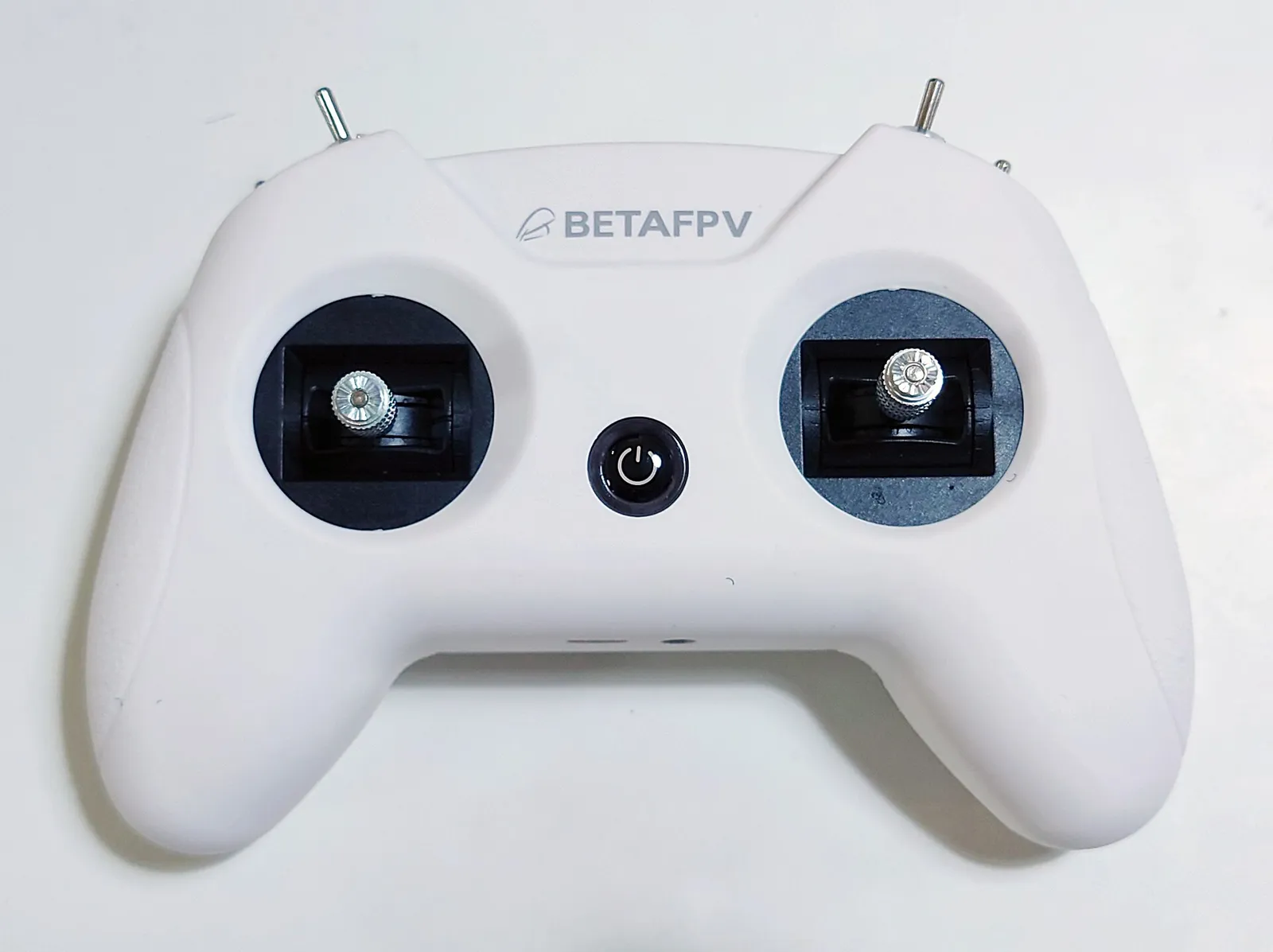
A gamepad will do at a pinch, but its short sticks are much less precise. For moving on to a real drone, it is more of a detour.
Stick layout: Mode 2
In Mode 2, throttle and yaw (rotation) are on the left, pitch and roll on the right. Which layout you use is a matter of taste. The only important thing: set the same layout in the simulator as you will use on the drone later, and calibrate the sticks in the simulator menu before you start.
Well-known FPV simulators
| Simulator | Provider | According to the official page |
|---|---|---|
| Liftoff: FPV Drone Racing | LuGus Studios | for Windows, macOS and SteamOS/Linux, playable only with a game controller or radio, build and share tracks |
| Liftoff: Micro Drones | LuGus Studios | separate game for the micro drone class, focus on FPV flying indoors, radio recommended |
| VelociDrone | VelociDrone | single player and online multiplayer, over 40 sceneries, track editor |
Liftoff: Micro Drones is a good fit if you later want to fly a Tiny Whoop indoors. Liftoff and VelociDrone are designed for freestyle and racing with larger drones.
Check the system requirements on the store page before buying, especially on laptops with weak graphics.
Practice plan: from hovering to Acro flight
The stages build on each other. Only move on once the current stage works without constant crashes. How long that takes varies a lot.
| Stage | Exercise | Goal |
|---|---|---|
| 1 | Take off, hover and land in Angle mode | Get a feel for throttle, hold altitude |
| 2 | Simple laps in an open area in Angle mode | Turns with roll and yaw at the same time |
| 3 | Switch to Acro mode, straight lines and wide turns only | Keep the drone level by hand |
| 4 | Acro: figure eights around two trees or posts | Adjust throttle in turns |
| 5 | Acro: fly through gates and gaps | Precision, looking ahead |
| 6 | Acro: a track in racing mode or first tricks (flip, roll) | Confident control in any attitude |
Practice tips:
- Often and short: Several short sessions do more than one long one.
- Switch to Acro early: Angle mode only helps at the start. Later you will fly FPV almost always in Acro.
- Camera angle and rates: Use settings in the simulator that match your real drone. Then the switch feels more similar.
- Slow rather than fast: Fly deliberately slowly and cleanly. Speed comes by itself.
From simulator to real drone
A simulator does not replace real flying. Wind, battery voltage and the radio link feel different outdoors. For your first real flight, a small, light drone such as a Tiny Whoop is a good choice.
As soon as you fly outdoors with goggles, the real rules apply, above all the airspace observer. Everything about this is under FPV rules. The whole path from simulator to your own gear is under Getting started with FPV.
Frequently asked questions
Can I practise with an Xbox or PlayStation controller?
The Liftoff page on Steam lists game controllers and radios as input devices. So a gamepad is enough to get started. But the sticks are shorter and less precise than on an FPV radio, so the real radio quickly pays off.
Do I need FPV goggles for the simulator?
No. You look at the monitor. Some pilots later use goggles on the PC, but it is not necessary for learning.
My PC does not recognise my radio?
First check the USB cable: pure charging cables do not transfer data; BetaFPV, for example, points this out in the LiteRadio 2 SE manual. Then check the manufacturer’s manual for how to activate USB joystick mode.
Are there simulators for phones too?
According to BetaFPV, the LiteRadio 2 SE also works with Android tablets and phones for FPV simulators. We have not checked which phone simulators exist. We only list simulators whose official pages we have opened.
Sources
- Steam: Liftoff: FPV Drone Racing (LuGus Studios), retrieved on 12 November 2026
- Steam: Liftoff: Micro Drones (LuGus Studios), retrieved on 12 November 2026
- BETAFPV: LiteRadio 2 SE Radio Transmitter (USB joystick, simulators), retrieved on 12 November 2026
- VelociDrone: official website, retrieved on 12 November 2026